
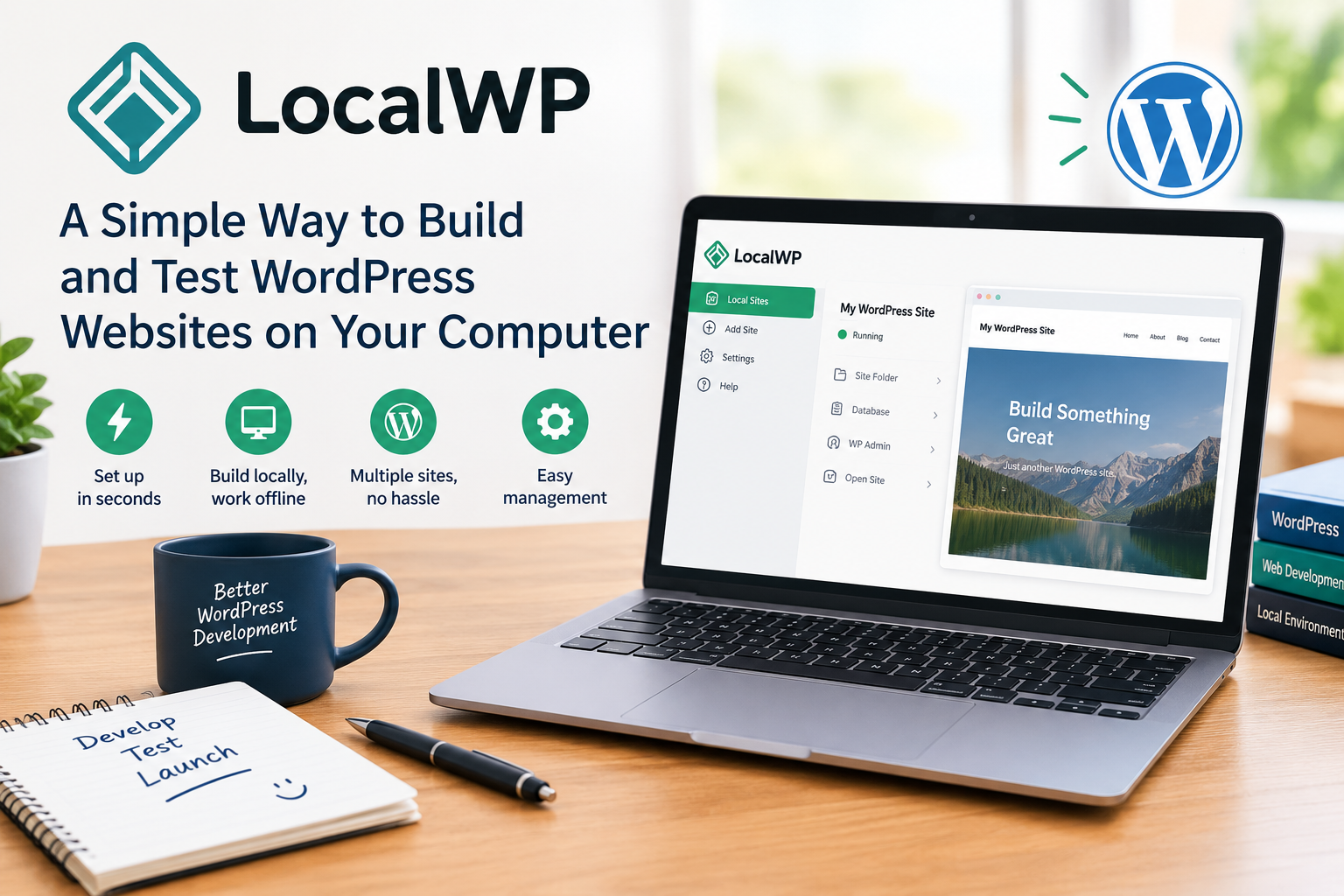
LocalWP: A Simple Way to Build and Test WordPress Websites on Your Computer
Building a WordPress website usually involves working directly on a live server or setting up a separate staging environment. While these methods work, they are not always ideal when you want to experiment, test plugins, change themes, or learn WordPress without affecting a live website.
This is where LocalWP comes in.
Local, formerly known as Local by Flywheel, is a desktop application designed specifically for developing WordPress websites on your own computer. It simplifies the process of creating a local WordPress environment so developers, designers, freelancers, and beginners can work on websites without immediately putting them online.
According to Local’s current website, the application is available as a free desktop tool and supports Windows, macOS, and Linux.
What Is LocalWP?
LocalWP is a local WordPress development environment. Instead of creating a WordPress installation on a web hosting account, you can install WordPress directly on your computer.
This creates a private development environment where you can build and modify a website before making it publicly accessible.
For example, you could use LocalWP to:
- Build a new WordPress website
- Design and test a theme
- Experiment with plugins
- Develop custom code
- Test website updates
- Practice WordPress development
- Create a website for a client
- Troubleshoot an existing WordPress website
Because the website runs locally, you can make changes without immediately affecting a live site.
Why Develop WordPress Websites Locally?
Working locally provides an important advantage: freedom to experiment.
Imagine that you have a business website that is already receiving visitors. You want to install a new plugin, change the theme, or modify some code. Making these changes directly on the live website can create problems if something goes wrong.
With LocalWP, you can create a copy of the website on your computer and test your changes first.
This can reduce the risk of breaking a live website and gives developers a safer environment for testing.
Local’s documentation describes the software as a development tool designed to simplify the setup and management of WordPress environments while reducing the need for manual server configuration.
Getting Started Is Simple
One of the biggest advantages of LocalWP is that you do not have to manually configure every component required to run WordPress.
Local can automatically install WordPress and configure the necessary environment. The official website describes its setup process as a one-click WordPress installation, with SSL included for newly created sites.
After installing the application, you can create a new WordPress site and begin working on it from your computer.
This is particularly useful for beginners who may find manually configuring PHP, MySQL, web servers, and WordPress intimidating.
Test Different PHP Versions
WordPress websites can behave differently depending on the PHP version they use.
LocalWP allows developers to switch between available PHP environments, making it easier to test whether a theme, plugin, or custom application works correctly in different configurations.
This can be especially useful when preparing a website for a hosting environment or troubleshooting compatibility problems.
Local also supports switching between NGINX and Apache environments, providing developers with additional flexibility when testing websites.
Built-In Developer Tools
LocalWP is more than just a way to install WordPress.
It includes several tools designed to make development and troubleshooting easier.
Developers can access:
- WP-CLI
- Site-specific shell access
- PHP logs
- NGINX and Apache logs
- MySQL logs
- Xdebug
- SSL support
- Email testing tools
- Environment configuration options
WP-CLI is particularly useful for developers who prefer working from the command line.
These tools allow developers to diagnose problems, run WordPress commands, inspect logs, and test functionality without relying entirely on a hosting control panel.
Live Links Make Collaboration Easier
Another useful feature is Live Links.
Normally, a website running on your computer is accessible only from your machine. That can make it difficult to show your work to a client or colleague.
Local’s Live Links feature provides a shareable URL that allows other people to view a local development site without requiring you to deploy it to a public server first.
This can be useful when:
- Showing a client a website design
- Getting feedback from a team
- Reviewing changes remotely
- Demonstrating a new feature
- Testing a website on another device
For freelancers and agencies, this can make the review process considerably easier.
Local Connect for Deployment
LocalWP can also connect local development with supported hosting environments.
Local Connect allows users to push and pull WordPress sites between Local and supported hosts such as WP Engine and Flywheel.
For example, a developer can pull a website from a supported remote environment, make changes locally, test those changes, and then push the updated site back.
The process helps create a workflow that looks something like:
Live Website → Local Development → Testing → Staging → Production
This separation can help developers avoid making unnecessary changes directly to a production website.
MagicSync Helps Manage Changes
When moving a website between environments, developers need to know what has changed.
Local’s MagicSync technology helps identify differences between a local site and a connected remote site and gives developers control over which changes should be synchronized.
This can be useful for larger projects where sending every file back and forth would be inefficient.
Instead, developers can review changes and choose what they want to deploy.
Cloud Backups
Local also offers cloud backup functionality through integrations with services such as Google Drive and Dropbox.
This provides another way to protect local development projects and retrieve site backups when needed.
However, developers should still treat backups as an important part of their overall workflow. A local development environment is stored on your computer, so regular backups remain important if your computer experiences hardware failure or data loss.
Useful for Beginners and Experienced Developers
One of the strongest aspects of LocalWP is that it can serve different types of WordPress users.
For Beginners
Beginners can use LocalWP to learn WordPress without paying for hosting or publishing unfinished websites online.
You can experiment with themes, plugins, menus, pages, and settings while keeping everything private.
For Freelancers
Freelancers can build websites for clients locally and share progress using Live Links.
This allows them to develop and review projects before moving them to a production environment.
For Developers
Experienced developers can use tools such as WP-CLI, Xdebug, custom PHP configurations, logs, and multiple environments to build and troubleshoot more advanced WordPress projects.
For Agencies
Agencies managing multiple WordPress websites can benefit from keeping separate projects organized on their development machines.
Local also supports cloning sites and creating reusable site Blueprints, which can help speed up the process of starting similar projects.
Is LocalWP Free?
One of the most attractive aspects of Local is its price.
The official Local website states that the application is free and will remain free.
You do not need to be a WP Engine or Flywheel customer to use Local. The Local FAQ confirms that the application is available for general use.
Some integrations, however, are specifically designed to connect Local with supported hosting services.
What Are the Limitations?
Although LocalWP is powerful, it is not a replacement for web hosting.
A local website normally runs only on your computer. Visitors cannot access it as a normal public website unless you use a sharing feature such as Live Links or deploy the site to a hosting provider.
You also need sufficient computer resources to run your local development environment, particularly when working with multiple large WordPress installations.
Another consideration is that local and production environments can sometimes behave differently. Before launching a website, developers should still test it in an environment that closely matches the final hosting configuration.
LocalWP vs. Building Directly on Live Hosting
There are two very different approaches to WordPress development.
Working directly on live hosting is straightforward, but changes can immediately affect visitors.
Working locally provides a safer environment for development and testing.
For many projects, the best approach is not to choose one exclusively. Instead, developers can use LocalWP for development and testing and then deploy the finished website to a hosting environment.
This creates a more controlled development workflow.
Conclusion
LocalWP is a useful tool for anyone who works with WordPress.
By creating a WordPress environment directly on your computer, it makes it easier to experiment, develop, test, troubleshoot, and prepare websites before they go live.
Its combination of automatic WordPress installation, flexible PHP and server environments, WP-CLI, debugging tools, Live Links, backups, and deployment integrations makes it useful for both beginners and experienced developers.
For WordPress users who regularly build websites, test plugins, develop themes, or manage client projects, LocalWP is worth considering as part of a modern development workflow.
The official Local website provides the free desktop application and current feature information.


